Quick Answer:
To get satellite view on Google Maps, open maps.google.com, click the Layers icon in the bottom-left corner, and choose Satellite. On mobile, open Google Maps, tap the Layers icon in the top-right corner, and select Satellite under Map Type. Google Maps satellite mode shows real aerial and satellite imagery of any location on Earth in place of the standard road map view.
Intro-
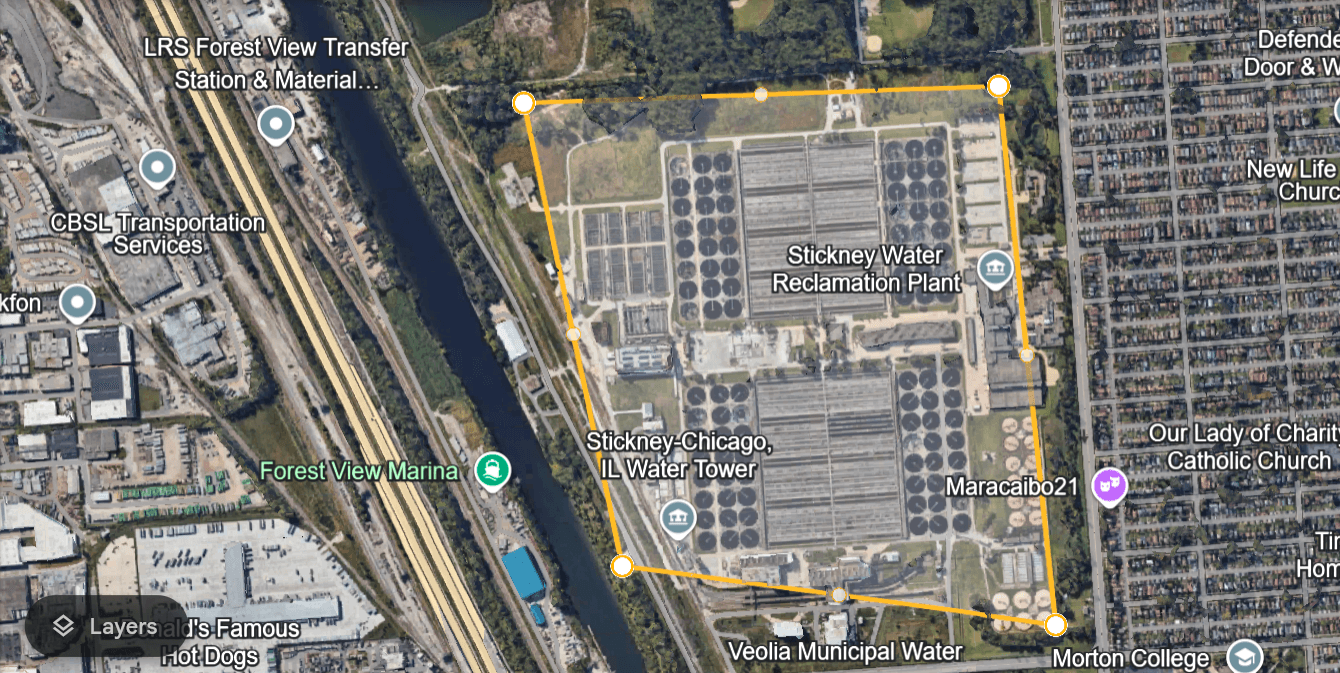
Google Maps satellite mode is one of the most used features in the world. Most people know it exists. Far fewer know everything it can do or where its limits are. This guide covers how to turn it on across every device, how to use every feature inside satellite mode, where it works best, and what to do when the imagery is not sharp enough for your project.
What Is Google Maps Satellite View?
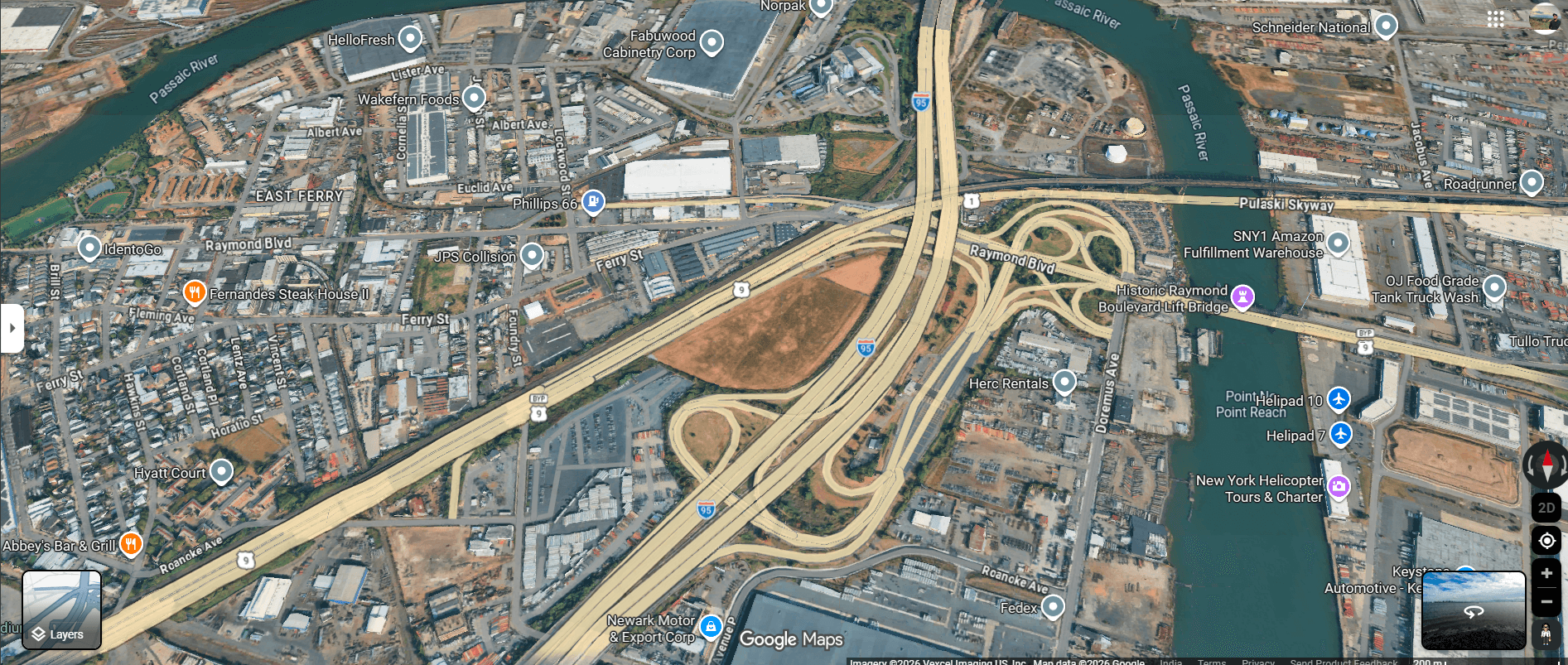
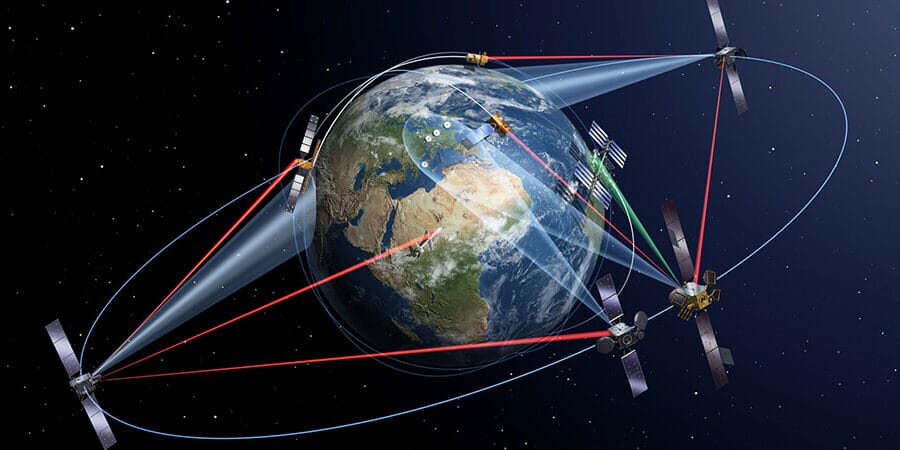
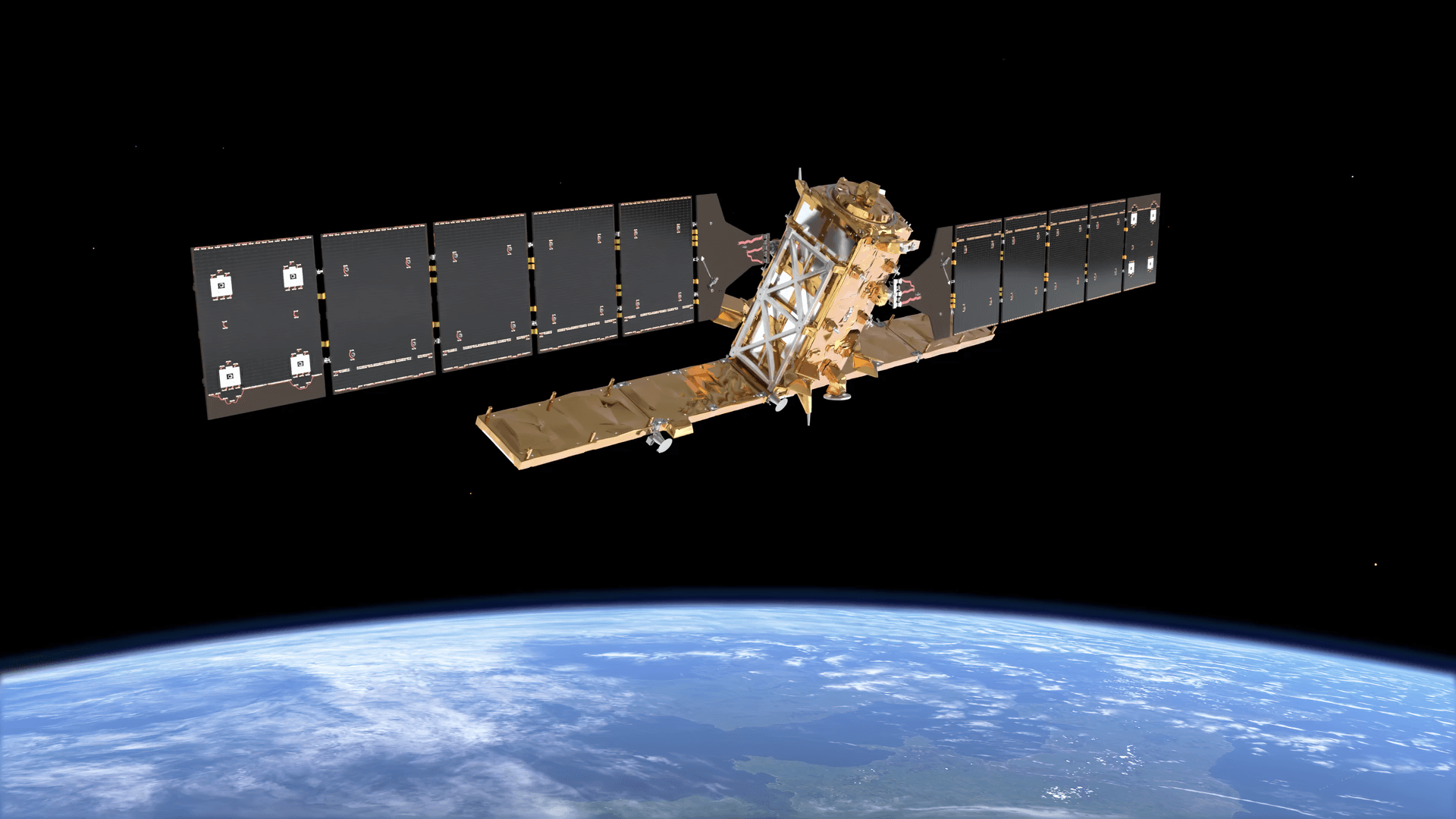
Google Maps satellite view, also called satellite mode, replaces the standard vector road map with real photographic imagery of the Earth’s surface captured by satellites and aerial cameras. Instead of coloured lines and labels representing roads and buildings, you see actual rooftops, vegetation, terrain, and land cover as they appear from above.
The imagery in Google Maps satellite mode is a processed mosaic: multiple scenes from different satellites and aerial surveys are stitched together, colour-balanced, and cloud-cleared to create a seamless visual layer. Road names, place labels, and points of interest can be kept on top of the satellite imagery using the Labels toggle.
Google Maps in satellite mode is available globally at no cost on desktop browsers, iOS, and Android.
How to Get Satellite View on Google Maps
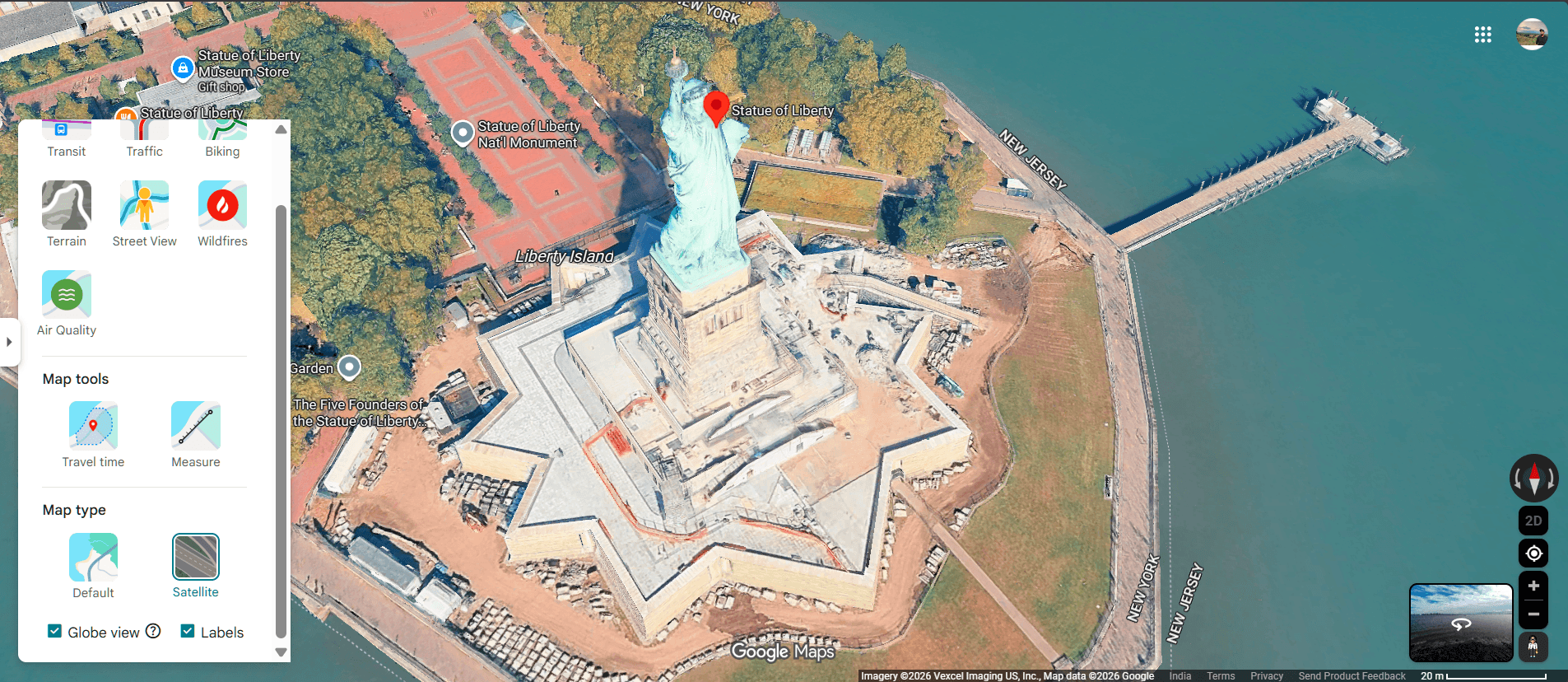
On Desktop (maps.google.com)
- Go to maps.google.com in your browser
- Search for your location or browse the map to your area of interest
- Click the Layers icon in the bottom-left corner of the map
- Select Satellite under Map Type
- The map switches immediately to satellite imagery
- Toggle Labels on or off depending on whether you want road names visible over the imagery
That is how to get satellite view on Google Maps on desktop. The Layers icon stays visible at all zoom levels so you can switch between map modes at any point.
On Mobile (iOS and Android)
- Open the Google Maps app on your phone
- Search for your destination or zoom to your area of interest
- Tap the Layers icon in the top-right corner of the screen
- Under Map Type, tap Satellite
- The view switches to satellite imagery immediately
- Optional: toggle Globe View to switch from a flat map to a 3D rotating globe view in satellite mode
- Optional: toggle Terrain to add topographic contour detail over the imagery
That is how to get satellite view on Google Maps on mobile. The same steps work on both iOS and Android.
What You Can See in Google Maps Satellite Mode
Google Maps satellite mode shows the Earth’s surface as photographed from above. What you can actually see depends on the resolution of the imagery available for your location.
In High-Resolution Urban Areas
In major cities and heavily photographed locations, Google Maps satellite mode gives you enough detail to see:
- Individual vehicles in car parks and on roads
- Building rooftops and rooftop features including HVAC units and solar panels
- Swimming pools, garden layouts, and property boundaries
- Construction progress at active sites
- Road markings including lane lines and pedestrian crossings
In Medium-Resolution Suburban and Rural Areas
In smaller towns and rural areas, resolution drops. You can typically see:
- Building footprints and general roof shapes
- Field and plot boundaries
- Road and path networks
- Large vegetation areas and water bodies
- General land use patterns
In Low-Resolution Remote Areas
In remote regions, imagery is often at 5m to 30m per pixel. At this resolution, individual buildings are not clearly visible and the view is more useful for understanding general terrain and landscape than for any detail-level work.
How to Use Every Feature in Google Maps Satellite Mode
Labels Toggle
Labels keeps road names, place names, and points of interest visible on top of the satellite imagery. Turn Labels on when you need navigation context. Turn Labels off when you want a clean photographic view for visual analysis or presentation.
Globe View (Mobile)
Globe View switches the flat map projection to a 3D rotating globe. In satellite mode, this gives a photorealistic view of the Earth as a sphere. It is useful for visualising large-scale geography and is a good tool for teaching and presentation. Rotate and tilt the globe using standard pinch and drag gestures.
Street View Combined With Satellite View
Street View gives you a ground-level 360-degree photograph of a location. Combining Google map satellite mode with Street View gives you both perspectives: aerial layout from satellite mode and ground truth from Street View.
To use Street View from satellite mode, drag the yellow Pegman icon from the bottom right of the screen onto any blue-highlighted road. Street View opens immediately. Use the back arrow to return to satellite mode.
This combination is particularly useful for:
- Confirming building entrances and access points before visiting
- Checking road surface quality for off-road route planning
- Verifying that visible structures in satellite mode are still standing and current
- Understanding the ground-level appearance of a location before a site visit
Measure Distance
The Measure Distance tool in Google Maps satellite mode calculates the straight-line distance between two or more points on the map. It is accessible by right-clicking any point on the map (desktop) or long-pressing a location (mobile) and selecting Measure Distance.
Click or tap additional points to add waypoints and measure total path distance. This is useful for:
- Planning hiking or cycling routes across terrain
- Estimating field or plot dimensions for agriculture
- Calculating walking distances between buildings on a site
- Rough distance checks for infrastructure planning
Note that Measure Distance gives straight-line (as-the-crow-flies) distances, not road distances. For road distances, use the standard Directions feature.
Historical Imagery (Google Earth Pro)
Google Maps satellite mode shows current imagery only. To browse historical captures of the same location, you need Google Earth Pro. In Google Earth Pro, the historical imagery slider lets you step through captures going back decades in some areas. This is useful for change detection, urban growth analysis, and before and after comparisons.
Download Satellite Maps for Offline Use
Google Maps allows you to download satellite maps for offline use. This is useful for areas with no mobile signal such as hiking trails, remote worksites, and rural locations.
To download:
- Go to your area of interest in Google Maps satellite mode
- Tap your profile icon in the top-right corner
- Select Offline Maps
- Tap Select Your Own Map
- Adjust the download area using the box on screen
- Tap Download
Downloaded maps include satellite imagery and work without an internet connection. Note that the imagery resolution in offline maps may be lower than the online version due to storage limits, and offline maps do not update automatically.
Best Use Cases for Google Maps Satellite View
Real Estate and Property
Google Maps in satellite mode lets you assess a property’s surroundings, garden layout, proximity to roads, parking availability, and neighbourhood density before visiting. For buyers, sellers, and agents, it reduces the number of physical site visits needed in early research stages.
Travel Planning
Satellite mode shows beaches, mountain terrain, trail access points, and scenic viewpoints at a level of detail that standard map views cannot match. Before a trip, use satellite mode to identify landmarks, assess terrain difficulty, and plan arrival routes.
Construction and Site Planning
Project managers and surveyors use Google Maps satellite mode to understand site topography, access routes, proximity to services, and surrounding land use before mobilising field teams. It reduces initial site assessment costs and helps identify issues before physical surveys begin.
Emergency Navigation and Alternative Routing
During road closures, floods, or disasters, satellite mode helps identify alternative routes including unpaved tracks, field access roads, and terrain crossings that do not appear on the standard map view. Emergency responders use satellite mode to assess affected areas and plan access routes.
Agriculture and Land Management
Farmers and land managers use satellite mode to view field layouts, irrigation features, access tracks, and vegetation patterns across large areas. The Measure Distance tool helps estimate plot sizes and distances between features.
Urban Planning and Architecture
Architects, planners, and developers use satellite mode to analyse surrounding built environment, density, green space, and infrastructure before beginning design work.
Where Google Maps Satellite Mode Falls Short
Google Maps satellite mode is a free consumer product. It is excellent for general navigation and visual reference but has real limits for professional applications.
| Limitation | Detail |
|---|---|
| Resolution in rural areas | Often 2m to 30m per pixel, too low for detail work |
| Data age | Archive imagery can be 1 to 3 years old in many areas |
| No spectral data | RGB visual only, no multispectral, hyperspectral, or SAR |
| No capture date control | You cannot request imagery from a specific date |
| No cloud cover guarantee | Some areas permanently affected by haze or cloud |
| No geometric accuracy spec | CE90 is not published for consumer maps |
| No GIS-ready delivery | Cannot download as GeoTIFF, SHP, or DWG |
For construction monitoring, infrastructure inspection, agricultural analysis, flood mapping, or any application requiring a known capture date, specified cloud cover, and GIS-compatible format, professional satellite imagery is required.
Google Maps Satellite Mode vs Professional Satellite Imagery
| Feature | Google Maps Satellite Mode | XRTech Professional Imagery |
|---|---|---|
| Best resolution | 15cm in select cities | 0.25m – 0.3m globally, any AOI |
| Rural coverage | 2m to 30m typical | 0.25m to 2m on demand |
| Data age | 1 to 3 years in many areas | Archive from 1999 or fresh in 7 days |
| Capture date | Unknown | Specified at time of tasking |
| Cloud cover | Cannot be specified | Set as a limit at ordering |
| Spectral data | RGB only | Multispectral, hyperspectral, SAR |
| Format | Viewable only, no download for analysis | GeoTIFF, SHP, DWG, GIS-ready |
| Geometric accuracy | Not published | 5m to 8m CE90, improvable with GCPs |
| Cost | Free | From $1/km2 archive, $8/km2 new tasking |
| Use case | Navigation and reference | Analysis, engineering, monitoring |
Get Professional Satellite Imagery Beyond Google Maps
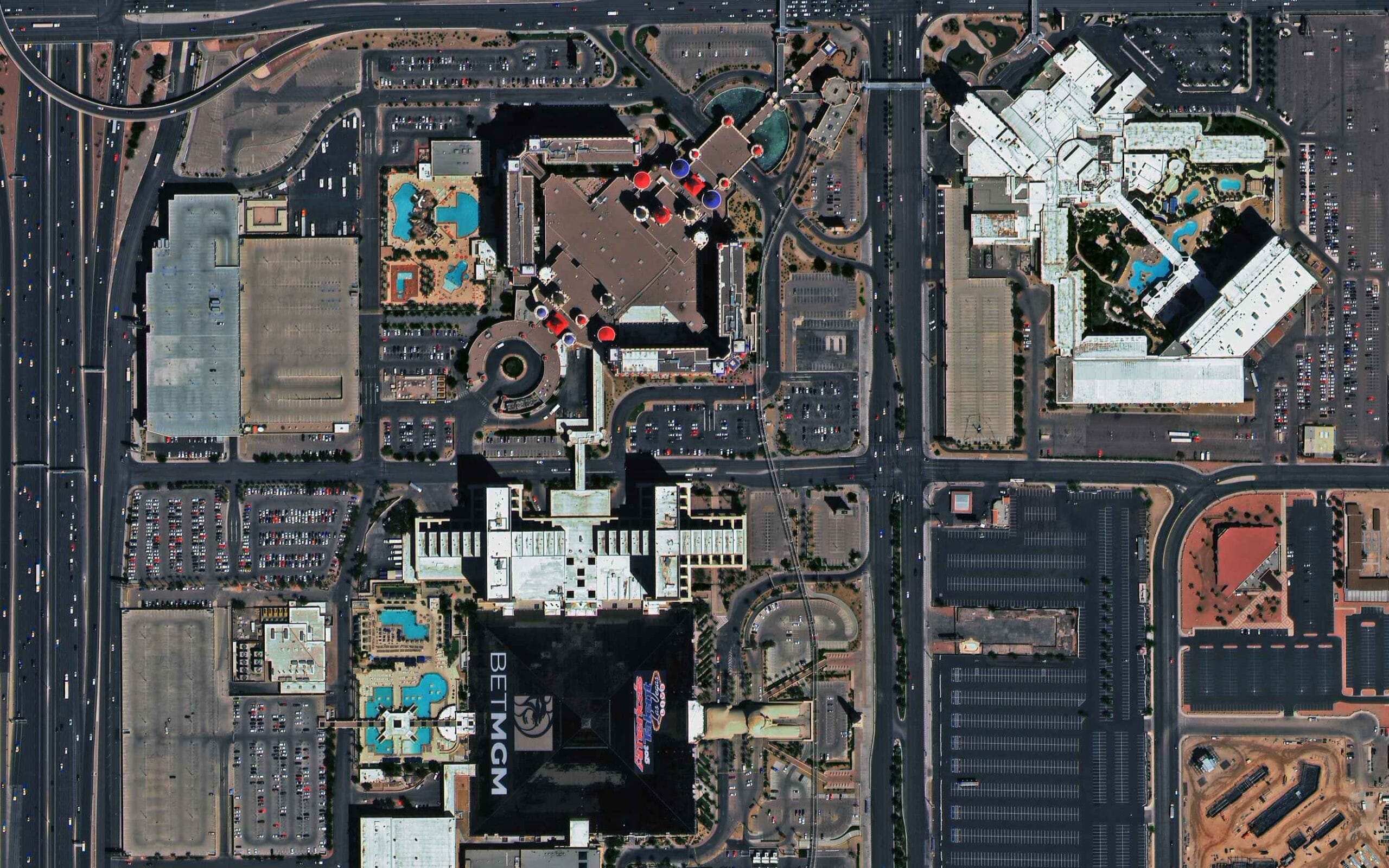
When Google Maps satellite mode does not have the resolution, currency, or format your project requires, XRTech provides satellite imagery at 0.3m to 2m resolution for any location on Earth. Archive imagery starts at $1/km2 and is delivered within 48 hours. New tasking starts at $8/km2 with your specified cloud cover limit and capture date.
Contact XRTech with your AOI and we will confirm resolution options and deliver a free sample tile within 24 hours.
FAQs
How do I get satellite view on Google Maps on desktop?
Go to maps.google.com, click the Layers icon in the bottom-left corner of the map, and select Satellite under Map Type. The map switches to satellite imagery immediately. Toggle Labels on or off depending on whether you want road names visible over the imagery.
How do I get satellite view on Google Maps on my phone?
Open the Google Maps app, tap the Layers icon in the top-right corner of the screen, and select Satellite under Map Type. On Android and iOS the steps are identical. You can also toggle Globe View for a 3D rotating satellite view of the Earth.
What is Google Maps satellite mode?
Google Maps satellite mode is a map display option that replaces the standard road map with real aerial and satellite imagery of the Earth’s surface. It shows buildings, terrain, vegetation, and land cover as seen from above. Road names and labels can be kept visible using the Labels toggle.
How is Google map satellite mode different from the standard map?
The standard Google Maps view shows a stylised vector map with coloured roads, labelled places, and simplified terrain. Google Maps satellite mode shows real photographic imagery of the same area captured by satellites and aerial cameras. Satellite mode shows actual buildings, trees, fields, and terrain in visual detail.
Can I use Google Maps satellite view offline?
Yes. In the Google Maps app, tap your profile icon, select Offline Maps, then Select Your Own Map. Adjust the download area and tap Download. Offline satellite maps work without an internet connection but may be at slightly lower resolution than the online version and do not update automatically.
Why is the satellite view on Google Maps blurry for my location?
Blurriness in Google Maps satellite mode is usually because your location has lower-resolution imagery. Rural and remote areas typically use 2m to 30m per pixel coverage compared to sub-metre imagery in major cities. Slow internet loading a low-resolution placeholder and the 3D buildings layer bug can also cause blurriness. Some areas are permanently blurred for security reasons.
Can I measure distances in Google Maps satellite mode?
Yes. Right-click any point on the map (desktop) or long-press a location (mobile) and select Measure Distance. Click or tap additional points to build a path. The total straight-line distance is shown at the bottom of the screen. This is useful for planning routes, estimating plot sizes, and checking distances between features.
Does Google Maps satellite mode show real-time imagery?
No. Google Maps satellite mode shows archived imagery, not real-time data. Most imagery is 6 months to 3 years old depending on the location. Urban areas are updated more frequently than rural areas. For current imagery captured on a specific date, professional satellite tasking from a provider like XRTech is required.
What is Globe View in Google Maps satellite mode?
Globe View is a mobile feature that switches from the standard flat map to a 3D rotating globe displayed in satellite mode. You can rotate and tilt the globe with standard touch gestures to see the Earth as a sphere with photorealistic satellite imagery. It is available on iOS and Android.
When should I use professional satellite imagery instead of Google Maps?
Buy professional satellite imagery when your project needs a specific capture date, resolution better than what Google Maps shows for your area, cloud-free guarantees, multispectral or SAR data, or GIS-compatible file formats. XRTech archive imagery starts at $1/km2 and provides 0.25m resolution globally with full metadata on capture date and conditions.
Can I See a Live Satellite Images of My House in Real Time? | Satellite View of My House
How Up to Date is Google Earth? Complete Guide
Summary
- Google Maps satellite view is available on desktop at maps.google.com and on iOS and Android through the Layers icon
- Satellite mode replaces the standard road map with real aerial and satellite imagery of buildings, terrain, and land cover
- Labels mode keeps road names and place labels visible on top of the satellite imagery
- Globe View on mobile switches from a flat map to a 3D rotating globe in satellite mode
- Street View combined with satellite view gives you both aerial and ground-level perspective of any location
- Google Maps satellite mode is useful for navigation, real estate, travel planning, construction, and emergency routing
- The Measure Distance tool in satellite mode calculates accurate distances between points for hiking, farming, and site planning
- Offline satellite maps can be downloaded in advance for areas with no mobile signal
- Imagery in satellite mode varies in resolution and age by location: urban areas are sharper and more current than rural areas
- For project-grade imagery at 0.25m resolution with a known capture date, professional satellite data from XRTech is the step up from Google Maps